Forms
Forms allow users to provide data or configure options through a variety of grouped input controls.
Anatomy
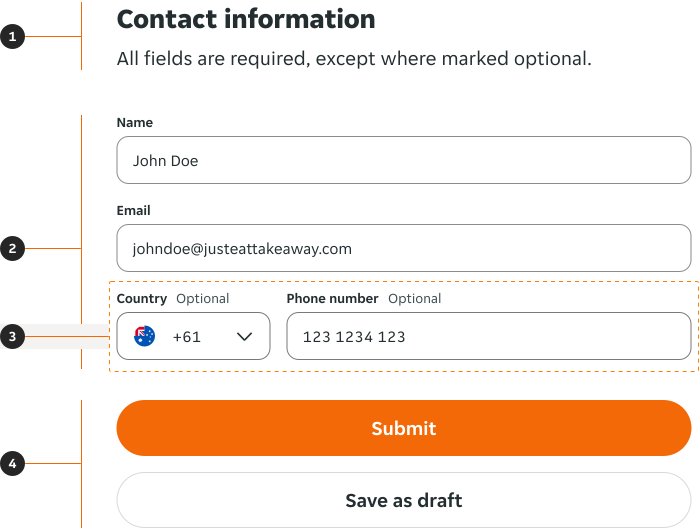
- Header (Optional): A title and subheading can provide additional context for the user.
- Body: This is the area where the user provides information. Various input components can be used to help users submit the right data.
- Row: A row of content, in this case split into two by a select input and a text input.
- Footer: Provides important actions such as submitting or saving data.
Appropriate body inputs
Use the appropriate input where possible for each data piece required. Such as:
Checkboxes
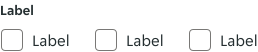
Checkboxes allow users to choose multiple options from an extensive list and for binary options that permit multiple selections, such as confirming terms and conditions.
Date pickers
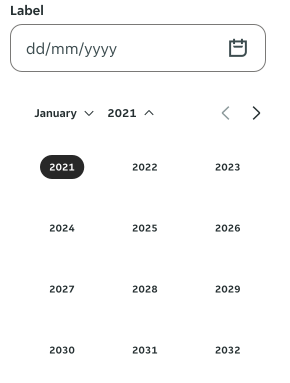
Date pickers provide an easy way to select specific dates or data ranges in a consistent, risk averse manner (e.g. bookings or appointments). Don’t use a date picker if the user already knows or is very familiar with the date, e.g. date of birth.
Dropdown
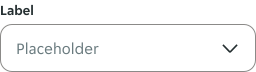
Dropdowns are for selecting one option from a long, predefined list of choices and conserving space is important. Dropdowns also allow hiding information which isn’t frequently used.
Numeric steppers
Numeric steppers are used when users need to input precise numeric data with easy to identify increments and decrements. A defined range or step size works best such as 1, 5, or 10.

Radio buttons
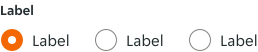
Radio buttons are for selecting one option from a small group of mutually exclusive choices and displaying all of those choices openly. This improves scannability and requires less actions from the user to see all of their options.
Select inputs
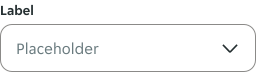
Select inputs are for selecting one option from a long, predefined list of choices and conserving space is important. Select inputs also allow hiding information which isn’t frequently used.
Switches
Switches are best utilised for binary on/off decisions. Switches are also particularly appropriate when an action has an immediate effect without requiring form submission.

Textareas
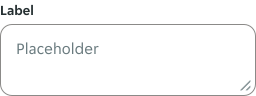
Textareas are used for multi-line, open-ended responses where users may need to write longer content. They excel at facilitating the collection of detailed and descriptive data, e.g. feedback & comments.
Text inputs
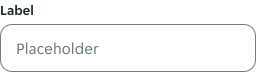
Text inputs are used for short, open-ended data entry which require precise manual info (e.g. names, email addresses and postcodes). Typically, the input should be used for one line of text.
Uploaders
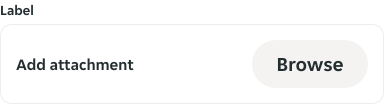
Uploaders give users the ability to submit more complex data files such as documents, images, and other media easily.
Body structure
Input widths
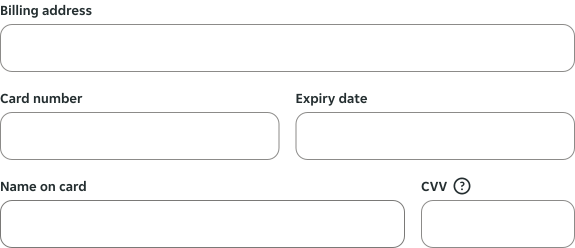
Define four standardised width options for form inputs to set clear expectations for users. These widths should be consistent across the pillar, and align to the grid. Input width should align with the expected length of the user’s entry, the longer the entry, the wider the input, and vice versa.
Column layouts
Ordering
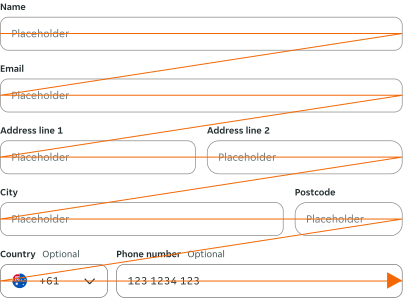
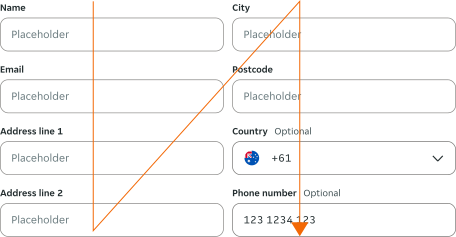
Where possible input fields should be arranged in a vertical layout (stacked on top of each other) rather than placed side by side or in a grid-like arrangement. Form content should be prepared to be read line by line either LTR or RTL depending on the language of the content to ensure users can easily digest the form.
Rows
Logically related fields can be placed in the same row, including standard inputs and those with prefixes or suffixes.
Logically related fields
Two fields can be logically related by belonging to the same category of data. For example, a city and postcode both belong to an address.

Prefixes and suffixes
Two fields with a connected relationship can be linked using an editable prefix or suffix, allowing users to modify the inputs directly.

Alignment
Input fields which do not fill their row should be aligned in the direction that they are read from based on the language of the content. E.g. LTR forms should align their inputs to the left.
Footers should either be aligned to the opposite side of input content, or fill their container in small viewports. This is to provide contrast with the form body.
Layout
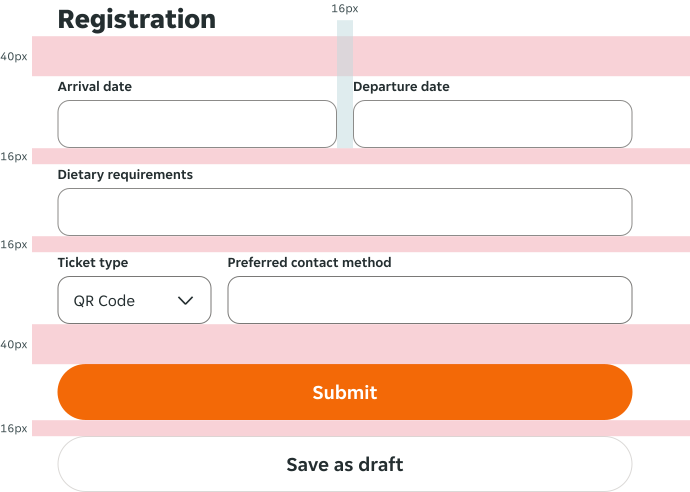
Outlines the internal spacing structure of the component. See the Spacing documentation for token details.
Content
Use sentence-style capitalisation and active language; strive for clarity and brevity in all copy. For additional guidance, refer to the UX copy team's documentation.
Button labels
Button labels should guide users through a clear indication of the action the button will take once clicked. Use active verbs, such as Add or Delete. For a pair of buttons, use specific labels, such as Save or Discard, instead of using OK and Cancel. This is particularly helpful when users are confirming an action.
Form labels
Form labels are a necessity because sighted users can read them, screen reader users will hear them, and motor-impaired users can more accurately set their focus area to them (due to the larger focus area). Avoid using placeholders as labels; once a user starts inputting data they will not be able to read what the label was, which makes it difficult to review answers.
Assistive text
Assistive text should always be clear, concise, and actionable to guide users effectively. Whether offering instructions, highlighting errors, or confirming success, focus on providing users with the information they need to complete their tasks confidently.
Behaviour
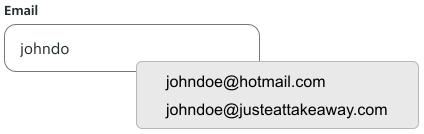
Autofill, spellcheck and autocorrect are all native HTML features. Therefore, we have limited control over how these elements are styled or interact.
Autofill
Autofill automatically fills in form fields with previously saved data.
Autofill works best for static, non-sensitive data that improves user convenience without compromising privacy or security, such as contact information or general demographic data. Avoid autofilling sensitive, dynamic or confidential data to protect users and maintain trust, such as temporary codes or appointment notes.
Spellcheck
Spellcheck is a feature that detects and highlights spelling errors in text fields.
Spellcheck is useful for fields like comments, feedback, or open-ended text responses where correct spelling enhances clarity and professionalism. Avoid using spellcheck for fields which are often grammatically incorrect, such as email addresses.

Autocorrect
Autocorrect automatically changes misspelled words or phrases as users type, based on a predefined dictionary or context. It aims to improve typing accuracy and reduce errors.
Autocorrect is best used for casual text inputs like a long-form message in a contact form. Avoid using it for precise fields which could be answered with technical terms.
Form feedback and support
Assistive text
Use assistive text when the information is essential for completing the form field correctly and when immediate context improves usability. When guidance is helpful but not mandatory use the help icon detailed below.
Default
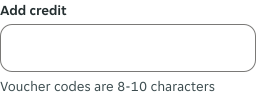
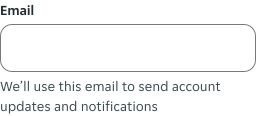
Assistive text reduces user confusion by providing additional guidance or context to help users fill out a field correctly.
Error
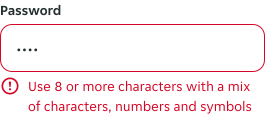
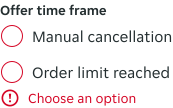
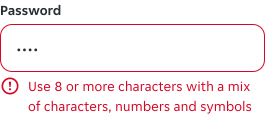
Error assistive text must be used to alert users of mistakes in their input and provide instructions on how to resolve those issues. To allow users to easily recognise what has gone wrong and identify how to fix it, reducing frustration and abandonment.
Success
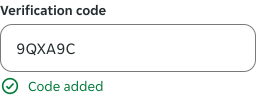
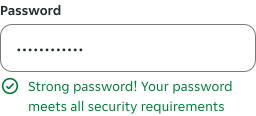
Success assistive text confirms that the input has been accepted or validated. Positive feedback builds user confidence and ensures clarity that their input passes live validation.
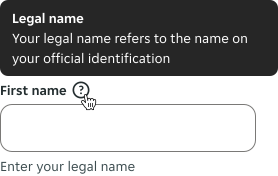
Help icon
The help icon provides access to additional, on-demand guidance without overwhelming the user interface. Consider combining these with assistive text when fields require extensive guidance by providing high-level information upfront and additional details on demand.
Form validation
Live validation
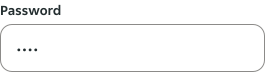
Wait for users to navigate off their currently selected field, before validating the data which they have entered.
Validating inputs live can be distracting from a task in progress rather than providing required assistance for smooth completion.
Submission validation
Submission validation ensures that data entered by users is correct and complete before being processed. If errors are detected during submission, it’s essential to provide feedback that helps users resolve these issues efficiently.
When a user has submitted a form with at least one error, it’s important to assist them with finding those errors and identifying what went wrong so that they can fix the problem seamlessly and with minimum frustration.
Therefore, it’s important to use the error summary component once a form has been submitted with incorrect data. Provide anchor links to errors throughout the form, marked via assistive text, error.
