
Modal

A modal is a surface that overlays the page’s main content and is used to display information, gather input or confirm actions.

Overview

The purpose of modals is to focus the user's attention on a specific task, message, or interaction, and to prevent interaction with other elements on the page while the Modal is active.

Modals are commonly used for tasks such as displaying notifications, presenting detailed information, requesting user input, or confirming critical actions.
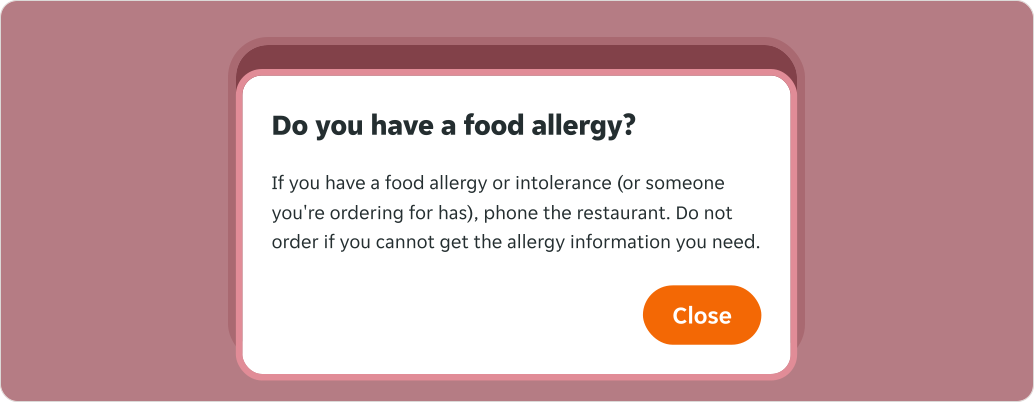
A Modal containing a heading, a body slot, and a button placed on the bottom right corner.

Dos and Don’ts

Do
  • Use dialogs in the neutral-alternative variant to display critical information and display urgent messages.
  • Choose variants in brand colours for promotional and non-critical content.
  • Use dialogs to drive user input or prompt for decisions.
  • Use dialogs for confirmations for important actions.
  • All content meets AA accessibility standards and is read by assistive technologies.
Don't
  • Don't allow excessive content length. Modals are for focused tasks, so a different component might be more suitable.
  • Don't use dialogs for minor notifications.
  • Limit and avoid excessive interruptions.
  • Don’t add crucial information to images.

Anatomy

Anatomy of a Modal.
  1. Header (optional): Adds content to the header. Choose from illustration or imagery.
  2. Back (optional): The chevron icon button allows the user to return back a stage in a multi-step modal.
  3. Title: Gives the users an overview of the content.
  4. Close: The close icon button will close the modal without submitting any data.
  5. Main content: Text input or open slot for any content required
  6. CTAs (optional): Single or dual call to action buttons to outline the user’s next options.
  7. Checkbox (optional): Confirmation checkbox for the primary button.
  8. Footer content (optional): Text can be added to the footer below actions.
  9. Overlay: Screen overlay that obscures the on-page content.

Variants

Colours

Select from a palette of distinct brand colours for the Modal.

Neutral - alternative

Neutral variation of modal.

02 Orange

02 Orange variation of modal.

03 Cupcake

03 Cupcake variation of modal.

03 Cupcake subtle

03 Cupcake subtle variation of modal.

04 Berry

04 Berry variation of modal.

04 Berry subtle

04 Berry subtle variation of modal.

05 Turmeric

05 Turmeric variation of modal.

05 Turmeric subtle

05 Turmeric subtle variation of modal.

06 Aubergine

06 Aubergine variation of modal.

06 Aubergine subtle

06 Aubergine subtle variation of modal.

08 Latte

08 Latte variation of modal.

08 Latte subtle

08 Latte subtle variation of modal.

Modifiers

Back

If a multi-step Modal is required, from steps two onwards a back Icon Button is displayed allowing the user to move back to the preview view.

A Modal with a back icon button in the header.

Close

Use this Header modifier when the Modal can be dismissed.

A Modal with a close icon button in the header.

Header Content

Header may include an illustration or an image.

A Modal with an image in

Body content

The body can be toggled on and off and may include text or an open slot to add in a specified design.

A Modal displaying an empty slot.
A Modal displaying text content.

The footer may include buttons stacked or side-by-side buttons, with the option of adding footer content in the form of either a text input or a slot to add specified content.

Stacked button option will only available for narrow modal components.
A Modal without content assigned to its footer slot.
A Modal with text content assigned to its footer slot.
A Modal displaying an empty footer slot.

Emphasis

Emphasis through colour

Depending on the level of visual prominence you want to give to the Modal, you can choose between strong or subtle emphasis.

A Modal using the aubergine subtle variant.
A Modal using the aubergine variant.

Text

The title can be changed to italic for more prominence.

A Modal with the title in italic style.
A Modal with the standard title style.

You can replace the footer Buttons with any Button or Button pair defined within the Button guidance.

Dual actions

A maximum of two Buttons are allowed within the Modal’s footer, with the primary Button right aligned and the lower emphasis Button on the left.

A Modal with dual buttons

Single

A single Button variant is available when only one action is required.

A Modal with a single primary button in its footer.

Checkbox confirmation

The checkbox control means users must select and acknowledge the required information before proceeding. The primary button remains disabled until the checkbox is checked.

It's recommended to use this only on medium and large modals. In narrow modals, it should be used only when buttons are stacked to ensure the checkbox label has enough space.
A Modal with a checkbox confirmation.

Passive

You can use the Passive modifier for the footer in instances where the user doesn't need to take an action. This will remove the buttons at the bottom of the Modal.

A Modal with a pair of primary and ghost buttons in its footer.

Imagery usage

Sizes

Aspect ratios vary depending on the modal variant being used. Narrow and Wide component obtain different aspect ratios to maintain the correct visual proportions of the component.

Narrow modal

The Narrow modal component supports three fixed aspect ratios for imagery. To prevent improper cropping, ensure all images are created to match one of the following ratios:

  • Small: 3:1
  • Medium: 16:9
  • Large: 4:3
Small
A narrow Modal with an image assigned with a small aspect ratio.
Medium
A narrow Modal with an image assigned with a medium aspect ratio.
Large
A narrow Modal with an image assigned with a large aspect ratio.

Wide modal

The wide modal component supports three fixed aspect ratios for imagery. To prevent improper cropping, ensure all images are created to match one of the following ratios:

  • Small: 4:1
  • Medium: 3:1
  • Large: 21:9
Small
A wide Modal with an image assigned with a small aspect ratio.
Medium
A wide Modal with an image assigned with a medium aspect ratio.
Large
A wide Modal with an image assigned with a large aspect ratio.

Overrides

Title

Two Modals are displayed, the first in regular style title, the second in emphasised style.
  1. Title: Title can be overridden to use any of the Heading font tokens. As a default state, the title will use Heading M / Narrow. When the prominent toggle is engaged, Heading XL / Narrow italic is applied.

Buttons

A Modal with custom buttons in its footer.
  1. Buttons: The Button’s size can be decreased, and their variant can be changed. But all changes must adhere to the button pair guidelines if they are kept as a pair, including the size of both buttons remaining consistent.

Sizes

There are three responsive Modal sizes: large, medium and small. Choose a size that works best for the amount of Modal content you have.

Modals with short messages should use the small Modal to avoid long single lines; for complex or larger content, medium or large Modal will be more suitable.

SizeBreakpointWidthMax heightMax width
Large>=768px75%100% height minus 80px top and bottom1080px
<768px100%100% height minus 80px top and bottom
Medium>=768px75%100% minus 80px top and bottom600px
<768px75% or 100% 100% minus 40px top and bottom or 100%
Small>=768px100%100% minus 80px top and bottom450px
<768px75%100% minus 40px top and bottom

Large

Large size modal.

Medium

Medium size modal.

Small

Small size modal.

Narrow

Sizes

Full screen

The wide large and optionally medium size, has the corresponding responsive option of fullscreen at narrow.

A fullscreen Modal on a mobile screen.

75% width

The wide small and optionally medium size, has the corresponding responsive option of 75% width at narrow.

A Modal with 75% width on a mobile screen.

Content

Overrides

A Modal with 75% width on a mobile screen.
  1. Buttons: The Button’s size can be decreased, and their variant can be changed. But all changes must adhere to the button pair guidelines if they are kept as a pair, including the size of both buttons remaining consistent.

Behaviours

Loading

In order to keep the size consistent when the content inside the modal is loading, we have set a fixed height of 360px while the loading spinner is visible.

Loading behaviour of a modal.

Checkbox confirmation

A maximum of two Buttons are allowed within the Modal’s footer, with the primary Button right aligned and the lower emphasis Button on the left.

Disabled continuation

The continue button remains disabled until the user selects the checkbox, ensuring they acknowledge the required information before proceeding.

Two Modals are displayed, where the second has a disabled primary button due to an unselected checkbox.

Error on attempted submission

If the user tries to continue without selecting the checkbox, it enters an error state with assistive text, guiding them to complete the required action.

Two Modals are displayed, where the second is in an error state due to an unselected checkbox.

Slot

Our Dialogs use Slots which ensure the component is flexible without the need to detach it from it’s original instance. If you want to learn more about slots and how to use them, please check the Slots documentation.

This video will show you the steps you need to use a Slot.

Quick guide for working with slots

Slots within components can be swapped for any type of content. Here are the steps you need to take when working with slots within your components:

  1. Create a new frame.
  2. Design the contents that will replace the slot inside the new frame.
  3. Once you’re happy with the contents, make it a ❖ component (Cmnd+Alt+K).
  4. Give your component a meaningful name so you can find it during step 5.
  5. Select the nested Slot within the original component and replace it with the component you created.
  6. Make sure your new component uses Auto layout so it can be resized properly.
A diagram showing how to use the Modal content slot.

Slots available

A diagram displaying the available slots for the Modal content and footer.
  1. Body Slot: Available as a variant
  2. Footer slot: Hidden by default

Layout

Position

Only applicable to Modals that aren’t full screen.

Center

The Modal is positioned at the center of the screen by default.

A Modal that is positioned in the middle of the screen.

Top

The Modal is positioned at the top of the screen by default.

A Modal that is positioned at the top of the screen.

Overflow

Title

When the title exceeds the available width, it wraps onto a new line.

A Modal with a long title.

Body content

When the Modal’s content is longer than the available Modal height, then the body section should scroll vertically with the header, and a footer fixed in place. Modal content should never scroll horizontally; instead, use a larger size modal.

If the actions are required to be sticky, they are pinned to the bottom of the Modal container whilst the user scrolls to indicate there is more content below.

A Modal with a pinned footer.

If the actions aren’t required to be sticky and are placed at the bottom of the content, the passive footer is pinned to the bottom of the Modal container whilst the user scrolls to indicate the presence of additional content below.

A Modal with an unpinned footer.

Checkbox confirmation

When the checkbox label exceeds the available width, it wraps onto a new line, and the height of the footer is increased, with all content remaining centre aligned.

A Modal with a confirmation checkbox.

Interactions

Close

Dismissible

If the Modal can be dismissed by the user, they should be able to dismiss it by clicking the close Icon Button or anywhere on the overlay. Doing this will close the Modal.

A dismissible Modal with a close button.

Non-dismissible

If the Modal is not dismissible, the user has to complete the flow in order to close the Modal.

A non-dismissible Modal without a close button.

Examples

Outlines the atomic level interactive elements for the component.

LTR examples

Here are some examples of modals in a left-to-right context:

A left-to-right example of tabs and cards in the Modal body.
A left-to-right example of list items and buttons in the Modal body.
A left-to-right example of a Modal with form fields in the Modal body.

RTL examples

Here are some examples of Buttons in right-to-left context:

A right-to-left example of tabs and cards in the Modal body.
A right-to-left example of list items and buttons in the Modal body.
A right-to-left example of a Modal with form fields in the Modal body.

Resources

Stable
Stable
Stable
Stable
Stable
Stable
Stable
iOS JustUI [UI Kit]
Stable
iOS PIE [SwiftUI]
Stable
Android PIE [Compose & Views]
Beta
Back to top